Explain About 3 Tier Architecture in Dote Net


Introduction

Here I will explain about uses of 3-Tier architecture and how to create or implement 3-tier architecture for our project in asp.net 

Description

1.    What is the use of 3-tier architecture and why we go for that architecture? 
2.    First we need to know what 3-Tier architecture is. 
3.    How to create 3-Tier architecture for our project?

 Uses of 3-Tier Architecture
  
1.    To make application more understandable. 
2.    Easy to maintain, easy to modify application and we can maintain good look of architecture.

3.    If we use this 3-Tier application we can maintain our application in consistency manner.   

Basically 3-Tier architecture contains 3 layers

1.    Application Layer or Presentation Layer 
2.    Business Access Layer(BAL) or Business Logic Layer(BLL) 
3.    Data Access Layer(DAL)

Here I will explain each layer with simple example that is User Registration

Application Layer or Presentation Layer

Presentation layer contains UI part of our application i.e., our aspx pages or input is taken from the user. This layer mainly used for design purpose and get or set the data back and forth. Here I have designed my registration aspx page like this

This is Presentation Layer for our project Design your page like this and double click on button save now in code behind we need to write statements to insert data into database this entire process related to Business Logic Layer and Data Access Layer.

Now we will discuss about Business Access Layer or Business Logic Layer 

Business Access Layer (BAL) or Business Logic Layer (BLL)

This layer contains our business logic, calculations related with the data like insert data, retrieve data and validating the data. This acts as a interface between Application layer and Data Access Layer

Now I will explain this business logic layer with my sample

I have already finished form design (Application Layer) now I need to insert user details into database if user click on button save. Here user entering details regarding Username, password, Firstname, Lastname, Email, phone no, Location. I need to insert all these 7 parameters to database. Here we are placing all of our database actions into data access layer (DAL) in this case we need to pass all these 7 parameters to data access layers.
In this situation we will write one function and we will pass these 7 parameters to function like this
String Username= InserDetails (string Username, string Password, string Email, string Firstname, string Lastname, string phnno, string Location)

If we need this functionality in another button click there also we need to declare the parameters likestring Username, string Password like this rite. If we place all these parameters into one place and use these parameters to pass values from application layer to data access layer by using single object to whenever we require how much coding will reduce think about it for this reason we will create entity layer or property layer this layer comes under sub of group of our Business Logic layer

Don't get confuse just follow my instructions enough
How we have to create entity layer it is very simple 

Right click on your project web application---> select add new item ----> select class file in wizard --->give name as BEL.CS because here I am using this name click ok

 Open the BEL.CS class file declare the parameters like this in entity layer 

Don’t worry about code it’s very simple for looking it’s very big nothing is there just parameters declaration that’s all check I have declared whatever the parameters I need to pass to data access layer I have declared those parameters only 

BEL.CS


#region Variables
/// <summary>
/// User Registration Variables
/// </summary>
private string _UserName;
private string _Password;
private string _FirstName;
private string _LastName;
private string _Email;
private string _Phoneno;
private string _Location;
private string _Created_By;
#endregion

/// <summary>
/// Gets or sets the <b>_UserName</b> attribute value.
/// </summary>
/// <value>The <b>_UserName</b> attribute value.</value>
public string UserName
{
get
{
return _UserName;
}
set
{
_UserName = value;
}
}

/// <summary>
/// Gets or sets the <b>_Password</b> attribute value.
/// </summary>
/// <value>The <b>_Password</b> attribute value.</value>
public string Password
{
get
{
return _Password;
}
set
{
_Password = value;
}
}

/// <summary>
/// Gets or sets the <b>_FirstName</b> attribute value.
/// </summary>
/// <value>The <b>_FirstName</b> attribute value.</value>
public string FirstName
{
get
{
return _FirstName;
}
set
{
_FirstName = value;
}
}
/// <summary>
/// Gets or sets the <b>_LastName</b> attribute value.
/// </summary>
/// <value>The <b>_LastName</b> attribute value.</value>
public string LastName
{
get
{
return _LastName;
}
set
{
_LastName = value;
}
}

/// <summary>
/// Gets or sets the <b>_Email</b> attribute value.
/// </summary>
/// <value>The <b>_Email</b> attribute value.</value>
public string Email
{
get
{
return _Email;
}
set
{
_Email = value;
}
}

/// <summary>
/// Gets or sets the <b>_Phoneno</b> attribute value.
/// </summary>
/// <value>The <b>_Phoneno</b> attribute value.</value>
public string Phoneno
{
get
{
return _Phoneno;
}
set
{
_Phoneno = value;
}
}

/// <summary>
/// Gets or sets the <b>_Location</b> attribute value.
/// </summary>
/// <value>The <b>_Location</b> attribute value.</value>
public string Location
{
get
{
return _Location;
}
set
{
_Location = value;
}
}

/// <summary>
/// Gets or sets the <b>_Created_By</b> attribute value.
/// </summary>
/// <value>The <b>_Created_By</b> attribute value.</value>
public string Created_By
{
get
{
return _Created_By;
}
set
{
_Created_By = value;
}

Our parameters declaration is finished now I need to create Business logic layer how I have create it follow same process for add one class file now give name called BLL.CS. Here one point don’t forget this layer will act as only mediator between application layer and data access layer based on this assume what this layer contains. Now I am writing the following BLL.CS(Business Logic layer)


#region Insert UserInformationDetails
/// <summary>
/// Insert UserDetails
/// </summary>
/// <param name="objUserBEL"></param>
/// <returns></returns>
public string InsertUserDetails(BEL objUserDetails)
{
DAL objUserDAL = new DAL();
try
{
return objUserDAL.InsertUserInformation(objUserDetails);
}
catch (Exception ex)
{
throw ex;
}
finally
{
objUserDAL = null;
}
}
#endregion
Here if you observe above code you will get doubt regarding these
what is
BEL objUserDetails
DAL objUserDAL = new DAL();

and how this method comes

return objUserDAL.InsertUserInformation(objUserDetails);

Here BEL objUserDetails means we already created one class file called BEL.CS with some parameters have you got it now I am passing all these parameters to Data access Layer by simply create one object for our BEL class file 

What is about these statements I will explain about it in data access layer

DAL objUserDAL = new DAL();
return objUserDAL.InsertUserInformation(objUserDetails);

this DAL related our Data access layer. Check below information to know about that function and Data access layer

Data Access Layer(DAL)

Data Access Layer contains methods to connect with database and to perform insert,update,delete,get data from database based on our input data

I think it’s to much data now directly I will enter into DAL

Create one more class file like same as above process and give name as DAL.CS

Write the following code in DAL class file


//SQL Connection string
string ConnectionString = ConfigurationManager.AppSettings["LocalConnection"].ToString();

#region Insert User Details
/// <summary>
/// Insert Job Details
/// </summary>
/// <param name="objBELJobs"></param>
/// <returns></returns>
public string InsertUserInformation(BEL objBELUserDetails)
{
SqlConnection con = new SqlConnection(ConnectionString);
con.Open();
SqlCommand cmd = new SqlCommand("sp_userinformation", con);
cmd.CommandType = CommandType.StoredProcedure;
try
{
cmd.Parameters.AddWithValue("@UserName",objBELUserDetails.UserName);
cmd.Parameters.AddWithValue("@Password", objBELUserDetails.Password);
cmd.Parameters.AddWithValue("@FirstName", objBELUserDetails.FirstName);
cmd.Parameters.AddWithValue("@LastName", objBELUserDetails.LastName);
cmd.Parameters.AddWithValue("@Email", objBELUserDetails.Email);
cmd.Parameters.AddWithValue("@PhoneNo", objBELUserDetails.Phoneno);
cmd.Parameters.AddWithValue("@Location", objBELUserDetails.Location);
cmd.Parameters.AddWithValue("@Created_By", objBELUserDetails.Created_By);
cmd.Parameters.Add("@ERROR", SqlDbType.Char, 500);
cmd.Parameters["@ERROR"].Direction = ParameterDirection.Output;
cmd.ExecuteNonQuery();
string strMessage = (string) cmd.Parameters["@ERROR"].Value;
con.Close();
return strMessage;
}
catch (Exception ex)
{
throw ex;
}
finally
{
cmd.Dispose();
con.Close();
con.Dispose();
}
}
#endregion

Here if you observe above functionality I am getting all the parameters by simply creating BELobjBELUserDetails. If we create one entity file we can access all parameters through out our project by simply creation of one object for that entity class based on this we can reduce redundancy of code and increase re usability

Observe above code have u seen this function before? in BLL.CS i said i will explain it later got it inDAL.CS I have created one function InsertUserInformation and using this one in BLL.CS by simply creating one object of DAL in BLL.CS.

Here you will get one doubt that is why BLL.CS we can use this DAL.CS directly into our code behind  we already discuss Business logic layer provide interface between DAL and Application layer by using this we can maintain consistency to our application.

Now our Business Logic Layer is ready and our Data access layer is ready now how we can use this in our application layer write following code in your save button click like this


protected void btnsubmit_Click(object sender, EventArgs e)
{
string Output = string.Empty;
if (txtpwd.Text == txtcnmpwd.Text)
{
BEL objUserBEL = new BEL();

objUserBEL.UserName = txtuser.Text;
objUserBEL.Password = txtpwd.Text;
objUserBEL.FirstName = txtfname.Text;
objUserBEL.LastName = txtlname.Text;
objUserBEL.Email = txtEmail.Text;
objUserBEL.Phoneno = txtphone.Text;
objUserBEL.Location = txtlocation.Text;
objUserBEL.Created_By = txtuser.Text;
BLL objUserBLL = new BLL();
Output = objUserBLL.InsertUserDetails(objUserBEL);

}
else
{
Page.RegisterStartupScript("UserMsg", "<Script language='javascript'>alert('" + "Password mismatch" +"');</script>");
}
lblErrorMsg.Text = Output;
}

Here if you observe I am passing all parameters using this BEL(Entity Layer) and we are calling the methodInsertUserDetails by using this BLL(Business Logic Layer)

Now run your applciation test with debugger you can get idea clearly.

I hope it helps you.

Convert Aspx to PDF

Advanced GridView Serach Opeartion in Asp.Net


Introduction

I was searching for a way to include a search textbox option in the ASP.NET GridView control. I couldn’t find an elegant solution and decided to implement it myself. So here’s my solution for the problem.

Why use this solution?

You can use this solution and implement row filtering in a grid very easily. Search and filter operations can be performed by just handling the search event that is raised. In addition, this GridView also allows you to set options to show row serial numbers, total number of rows, and show the header and footer even when no rows are available in the GridView. (By default, the header and footer are hidden when the GridView has no rows to display.)

The solution

What I have done

  1. I’ve extended the GridView and created a SearchableGridView class.
  2. Added a TemplateColumn to display the row number.
  3. Added controls in the footer to handle the search operation.
  4. Raise an event with the search string as argument when a search is fired.

The code

I’ve extended the GridView control as a SearchableGridView to include the search option in the footer of the GridView.
public class SearchGridView : GridView
In order to show the row serial number, I’ve created the following template column:
public class NumberColumn : ITemplate
{
    public void InstantiateIn(Control container)
    {

    }
}
In SearchableGridView, I’ve overridden the OnInit function to add the template column as the first column to show the row serial number, if the ShowRowNumber flag is turned on.
protected override void OnInit(EventArgs e)
{
    base.OnInit(e);
    //If showrownumber option is turned on then add 
    //the template column as the first column.
    if (!IsDesign() && ShowRowNumber) 
    {
        TemplateField tmpCol = new TemplateField();
        NumberColumn numCol = new NumberColumn();
        tmpCol.ItemTemplate = numCol;
        // Insert this as the first column
        this.Columns.Insert(0, tmpCol);
    }
}
The OnRowCreated method is called every time a row is created. During runtime, depending on the RowType, I add the search controls and the number of the row's label (in the footer), the row number (in every row), and the column header for the row number column (in the header).
protected override void OnRowCreated(GridViewRowEventArgs e)
{
    base.OnRowCreated(e);
    if (!IsDesign()) //During Runtime
    {
        if (e.Row.RowType == DataControlRowType.Footer)
        {
            //If ShowFooter is set to true
            if (ShowFooter && e.Row.Cells.Count > 0)
            {
                //If TotalRows has to be shown
                if (ShowTotalRows)
                {
                    e.Row.Cells[0].Text = ViewState[NO_OF_ROWS] + " Rows.";
                }
                if (e.Row.Cells[e.Row.Cells.Count - 1].Controls.Count == 0)
                {
                    //Create the search control
                    Table table = new Table();
                    table.Style.Add("width", "100%");
                    table.Style.Add("align", "right");
                    TableRow tr = new TableRow();
                    TableCell tc = new TableCell();
                    tc.Style.Add("align", "right");
                    tc.Style.Add("width", "100%");

                    //Populate the dropdownlist with the Ids
                    //of the columns to be filtered
                    if (_ddlFinder.Items.Count == 0)
                        SetFilter();

                    _btnSearch.Width = 20;
                    _btnSearch.Height = 20;
                    _btnSearch.ImageAlign = ImageAlign.AbsMiddle;
                    _btnSearch.AlternateText = "Search";
                    //Assign the function that is called when search button is clicked
                    _btnSearch.Click += new ImageClickEventHandler(_btnSearch_Click);
                    
                    tc.Controls.Add(_ddlFinder);
                    tc.Controls.Add(_tbSearch);
                    tc.Controls.Add(_btnSearch);
                    tr.Cells.Add(tc);
                    table.Rows.Add(tr);

                    _pnlSearchFooter.Controls.Add(table);
                    e.Row.Cells[e.Row.Cells.Count - 1].Controls.Add(_pnlSearchFooter);
                
                }
            }
        }
        if (e.Row.RowType == DataControlRowType.Header)
        {
            // If ShowHeader is set to true and 
            // If Row number has to be shown

            if (ShowRowNumber && ShowHeader) 
            {
                e.Row.Cells[0].Text = "Sno";
            }
        }
        else if (e.Row.RowType == DataControlRowType.DataRow)
        {
            if (ShowRowNumber)
            {
                //Set the row number in every row
                e.Row.Cells[0].Text = (e.Row.RowIndex + 
                  (this.PageSize * this.PageIndex) + 1).ToString();
            }
        }
    }
}
The SearchFilters property of the SearchableGridView sets the dropdownlist values for the search option. The Text property of the list item corresponds to the display name in the dropdownlist and the Value property of the list item is the column name of the data source.
public void SetFilter()
{
    _ddlFinder.Items.Clear();
    //Copy the items to the dropdownlist
    foreach (ListItem li in SearchFilters)
        _ddlFinder.Items.Add(li);
}
Now, let's move on to the handling of the search event. For this, I created a delegate and fire the event SearchGrid, when the search button is hit. The search string is formed using the syntax _ddlFinder.SelectedValue + " like '" + _tbSearch.Text.Trim() + "%'".
public delegate void SearchGridEventHandler(string _strSearch);
public event SearchGridEventHandler SearchGrid;

void _btnSearch_Click(object sender, ImageClickEventArgs e)
{
    string sSearchText = ConstructSearchString();
    OnSearchGrid(sSearchText);
}

protected string ConstructSearchString()
{
    string _strText = _tbSearch.Text.Trim();

    if (_strText == string.Empty)
        return string.Empty;

    return _ddlFinder.SelectedValue + " like '" + _strText + "%'";
}

protected void OnSearchGrid(string _strSearch)
{
    if (SearchGrid != null)
    {
        SearchGrid(_strSearch);
    }
}

Showing the footer when no rows are returned

The default property of the GridView is to hide the header and footer when no rows are bound to it. Setting an empty item template would only show the template but not the header or the footer. In our case, the footer has to be shown always, irrespective of the number of rows bound to the SearchableGridView, because the search option should be visible. To achieve this, I had to override the CreateChildControls method as below:
protected override int CreateChildControls(System.Collections.IEnumerable dataSource, 
                                           bool dataBinding)
{
    int count = base.CreateChildControls(dataSource, dataBinding);

    //  no rows in grid. create header and footer in this case
    if (count == 0 && (ShowEmptyFooter || ShowEmptyHeader))
    {
        //  create the table
        Table table = this.CreateChildTable();

        DataControlField[] fields;
        if (this.AutoGenerateColumns)
        {
            PagedDataSource source = new PagedDataSource();
            source.DataSource = dataSource;

            System.Collections.ICollection autoGeneratedColumns = 
                                           this.CreateColumns(source, true);
            fields = new DataControlField[autoGeneratedColumns.Count];
            autoGeneratedColumns.CopyTo(fields, 0);
        }
        else
        {
            fields = new DataControlField[this.Columns.Count];
            this.Columns.CopyTo(fields, 0);
        }

        if (ShowEmptyHeader)
        {
            //  create a new header row
            GridViewRow headerRow = base.CreateRow(-1, -1, DataControlRowType.Header, 
                                                   DataControlRowState.Normal);
            this.InitializeRow(headerRow, fields);
            // Fire the OnRowCreated event to handle showing row numbers
            OnRowCreated(new GridViewRowEventArgs(headerRow));
            //  add the header row to the table
            table.Rows.Add(headerRow);
        }

        //  create the empty row
        GridViewRow emptyRow = new GridViewRow(-1, -1, DataControlRowType.EmptyDataRow, 
                                               DataControlRowState.Normal);
        TableCell cell = new TableCell();
        cell.ColumnSpan = fields.Length;
        cell.Width = Unit.Percentage(100);

        //  respect the precedence order if both EmptyDataTemplate
        //  and EmptyDataText are both supplied ...
        if (this.EmptyDataTemplate != null)
        {
            this.EmptyDataTemplate.InstantiateIn(cell);
        }
        else if (!string.IsNullOrEmpty(this.EmptyDataText))
        {
            cell.Controls.Add(new LiteralControl(EmptyDataText));
        }

        emptyRow.Cells.Add(cell);
        table.Rows.Add(emptyRow);

        if (ShowEmptyFooter)
        {
            //  create footer row
            GridViewRow footerRow = base.CreateRow(-1, -1, DataControlRowType.Footer, 
                                                   DataControlRowState.Normal);
            this.InitializeRow(footerRow, fields);
            // Fire the OnRowCreated event to handle showing
            // search tool and total number of rows
            OnRowCreated(new GridViewRowEventArgs(footerRow));

            //  add the footer to the table
            table.Rows.Add(footerRow);
        }

        this.Controls.Clear();
        this.Controls.Add(table);
    }

    return count;
}

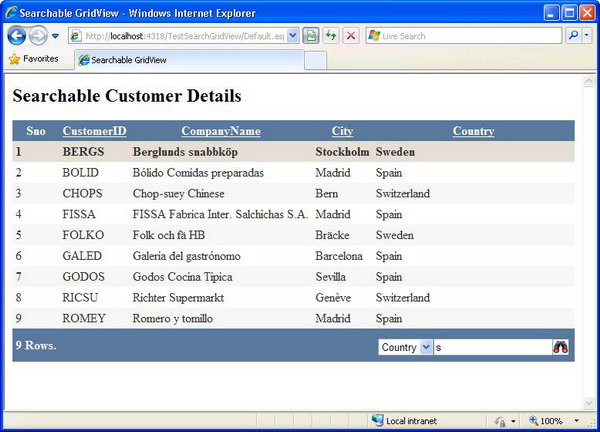
Working sample

Let me illustrate the above control with the help of an example. For this purpose, I have used the Customers table from the NorthWind database.
Step 1: Create a data source dsCustomers with the Select query: "SELECT CustomerID, CompanyName, Address, City, Country FROM Customers".
Step 2 : Create an instance of SearchableGridView and customize the SearchFilters property to have the list of columns on which the search can be performed.

Step 3: Add two hidden fields hfSearchText and hfSort to store the search text and the sort text, respectively.
Step 4: Implement the SearchGrid event to set the search string on the data source and filter the rows in the SearchableGridView. hfSearchText and hfSort are hidden fields that hold the search string and the sort string of the SearchableGridView. The BindData method binds the data after filtering and sorting.
protected void SearchGridView1_SearchGrid(string _strSearch)
{
    hfSearchText.Value = _strSearch;
    BindData();
}

protected void SearchGridView1_Sorting(object sender, GridViewSortEventArgs e)
{
    //If hfSort has the same value as before, 
    //the sorting should be done in descending order
    if (hfSort.Value == e.SortExpression)
        hfSort.Value = e.SortExpression + " Desc";
    else
        hfSort.Value = e.SortExpression;
    BindData();
}

void BindData()
{
    //hfSearchText has the search string returned from the grid.
    if (hfSearchText.Value != "")
        dsCustomers.SelectCommand += " where " + hfSearchText.Value;
    DataView dv = (DataView)dsCustomers.Select(new DataSourceSelectArguments());
    //hfSort has the sort string returned from the grid.
    if (hfSort.Value != "")
        dv.Sort = hfSort.Value;

    SearchGridView1.DataSource = dv;
    try
    {
        SearchGridView1.DataBind();
    }
    catch (Exception exp)
    {
        //If databinding threw exception b’coz current 
        //page index is > than available page index
        SearchGridView1.PageIndex = 0;
        SearchGridView1.DataBind();
    }
    finally
    {
        //Select the first row returned
        if (SearchGridView1.Rows.Count > 0)
            SearchGridView1.SelectedIndex = 0;
    }
}

Conclusion

SearchableGridView will be very useful when there are a large number of rows in the grid. Searching through the rows can be implemented without much hassle.


Download Source Code

Conform Message In Code Behing in Asp.Net

Multiple Ways to Call Javascript Function from CodeBehind in ASP.Net

Introduction
JavaScript is one of the very versatile scripting languages that are used in Web applications. Even though we can accomplish everything in server side programming using C#, it is still advisable to do some of the things like validations, etc in clientside using JavaScript. In ASP.Net 1.x, we don’t have that much support in the framework to hook JavaScript functions from the asp.net page dynamically. This drawback was addressed with the release of ASP.Net 2.0 by providing developers a lot many features to embed JavaScript blocks dynamically through a class called ClientScriptManager.

ClientScriptManager Class
We normally add JavaScript functions to our webpage using <Script> tag. There are situations where we need to add the scripts dynamically from the codebehind class. In .NetFramework 1.x version, there is no class that helps us to handle this situation effectively. This drawback was addressed .NetFramework 2.0 by introducing a new class called ClientScriptManager.  This class can be used to manage and add script blocks to the asp.net page from codebehind class.

Things we should know about ClientScriptManager Class
Ø       ClientScript property of the Page object will give us an instance of ClientScriptManager object. We can add the scripts dynamically through this instance which will be then injected in the HTML output.
Ø       This class uniquely identifies scripts by a key String and a Type. Scripts with the same key and type are considered duplicates and hence similar scripts are avoided. This will avoid the confusion caused when we are adding scripts from usercontrols. For example, the method IsClientScriptBlockRegistered() can be used for checking duplicate script registered for RegisterClientScriptBlock() method.

ClientScriptManager class has a set of useful methods which we can use to inject the JavaScript functions in the HTML output. We can choose to use these methods to accomplish our requirements depending on the situation.

Moving forward, we will discuss the usages of below 3 different methods to inject javascript from codebehind file,
1.      RegisterClientScriptBlock() Methods.
2.      RegisterStartupScript() Methods.
3.      RegisterOnSubmitStatement() Methods.

RegisterClientScriptBlock Methods
Page.RegisterStartUpScript() and the Page.RegisterClientScriptBlock() methods in .Netframework 1.x are now considered obsolete. These 2 methods are now packed with ClientScriptManaget class. The RegisterClientScriptBlock() method allows you to place a JavaScript function at the top of the page and gets executed on startup of the page i.e. when loading the page in the browser. There is a additional method called IsClientScriptBlockRegistered() in ClientScriptManager which will return true if a script block is already registered with  the same key, hence we can prevent the duplicate script registration.

There are 2 overloads for this method,
ClientScriptManager.RegisterClientScriptBlock (Type typeofscript, String key, String script)
ClientScriptManager.RegisterClientScriptBlock (Type typeofscript, String key, String script, Boolean addScriptTags)

Usage
Placing this code on page load or a button click makes the script to fire on the start up of subsequent postback.

1st overload
ClientScriptManager script = Page.ClientScript;
        if (!script.IsClientScriptBlockRegistered(this.GetType(), "Alert"))
        {
            script.RegisterClientScriptBlock(this.GetType(), "Alert", "<script type=text/javascript>alert('hi')</script>");
        }

2nd overload
ClientScriptManager script = Page.ClientScript;
if (!script.IsClientScriptBlockRegistered(this.GetType(), "Alert"))
        {
            script.RegisterClientScriptBlock(this.GetType(), "Alert", "alert('hi')",true);
        }


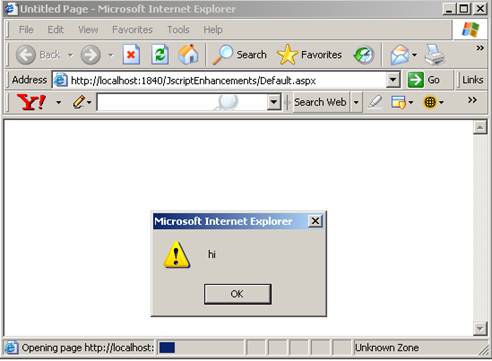
As I said earlier, these methods will make the script block to execute on the startup, thus we can see the alert box before the controls are actually rendered.

RegisterStartupScript Methods
In this section, we will see the usage ClientScriptManager.RegisterStartupScript() method of ClientScriptManager class. Both, RegisterStartupScript() methods and RegisterClientScriptBlock() methods will inject Jscript code that will fire during start up of subsequent postback. But the real difference is the former methods will inject the script after the form open tag but before page controls and the RegisterStartupScript() methods will inject the scripts after page controls but before form close tag. This indicates that injecting script using RegisterClientScriptBlock() method it is not possible to access page controls in the script block while using RegisterStartupScript() method we can.
The below markups will show a part an html output given by the asp.net page when executing these RegisterClientScriptBlock and RegisterStartupScript methods.

RegisterClientScriptBlock Output
    <form name="form1" method="post" action="Default.aspx" id="form1">
<div>
<input type="hidden" name="__VIEWSTATE" id="__VIEWSTATE" value="/wEPDwUJMjgzMDgzOTgzZGQfI8LfDKmcT0TXZj8jwrxqI6TOIA==" />
</div>
<script type=text/javascript>alert('hi')</script>

In the above html snippet, we can see the script embedded before the page controls but after form open tag.

RegisterStartupScript Output
<script type="text/javascript">
<!--
alert(document.getElementById('txtName').value)// -->
</script>
</form>
</body>
 In the above html snippet, we can see the script embedded after the page controls but before form close tag thus making the script able to access the page controls as I said earlier.

Overloads
There are 2 overloads for this method,
ClientScriptManager.RegisterClientScriptBlock (Type typeofscript, String key, String script)
ClientScriptManager.RegisterClientScriptBlock (Type typeofscript, String key, String script, Boolean addScriptTags)

Usage
Placing this code on page load or a button click makes the script to fire on the start up of subsequent postback. This method is also has a method called IsStartupScriptRegistered() like RegisterClientScriptBlock() methods which will check for script duplications.

1st overload:
ClientScriptManager script = Page.ClientScript;
txtName.Text = "Satheesh Babu";
        if (!script.IsStartupScriptRegistered (this.GetType(), "Alert"))
        {
            script.RegisterStartupScript (this.GetType(), "Alert", "&lt;script type=text/javascript&gt;alert(document.getElementById('txtName').value)&lt;/script&gt;");
        }

2nd overload:
ClientScriptManager script = Page.ClientScript;
txtName.Text = "Satheesh Babu";
if (!script.IsStartupScriptRegistered (this.GetType(), "Alert"))
        {
            script.RegisterStartupScript (this.GetType(), "Alert", "alert(document.getElementById('txtName').value)",true);
        }

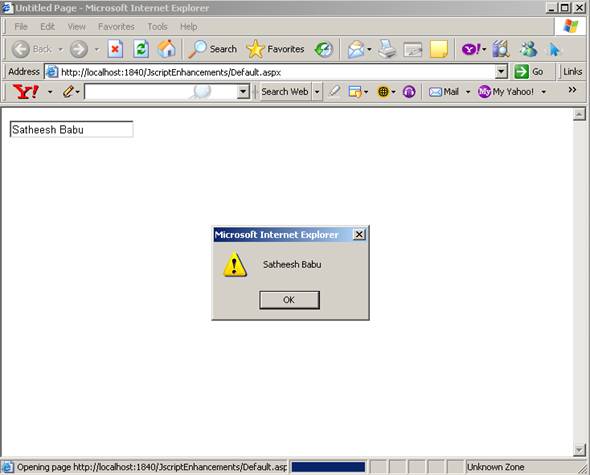
When the above code is executed we will get an output like,

Here, the script block will get executed after the controls in the page are rendered and the controls in the page will be visible to the script as opposed to RegisterClientScriptBlock() method, refer the above figure. Thus we can access the page controls from the script block when using RegisterStartupScript() method.


RegisterOnSubmitStatement() Method
This section will discuss the implementation of ClientScriptManager.RegisterOnSubmitStatement() of ClientScriptManager class. Sometimes, we will require getting confirmation from the user before submitting the form to server. For example, in an input form we would like to get the confirmation from the users before storing it to the database whose validity cannot be determined through validation functions. This method can be used in such situations to provide a confirmation dialogs. This method registers scripts which will be executed at the time of submit click of a page.

Syntax
public void RegisterOnSubmitStatement (
    Type type,
    string key,
    string script
)

Usage
Placing this code on page load makes the script to fire on every submit click of the webform.

if (!script.IsClientScriptBlockRegistered(this.GetType(), "SubmitScript"))
        {
            script.RegisterOnSubmitStatement(this.GetType(), "SubmitScript", "alert('Submit Clicked')");
        }

Consider the below code,
protected void Page_Load(object sender, EventArgs e)
    {    
ClientScriptManager script = Page.ClientScript;
if (!script.IsClientScriptBlockRegistered(this.GetType(), "SubmitScript"))
     {
          script.RegisterOnSubmitStatement(this.GetType(), "SubmitScript", "return confirm('Are you sure to continue')");
     }
    }
    protected void btnSubmit_Click(object sender, EventArgs e)
    {
        Response.Write("Form is Submitted.");
    }

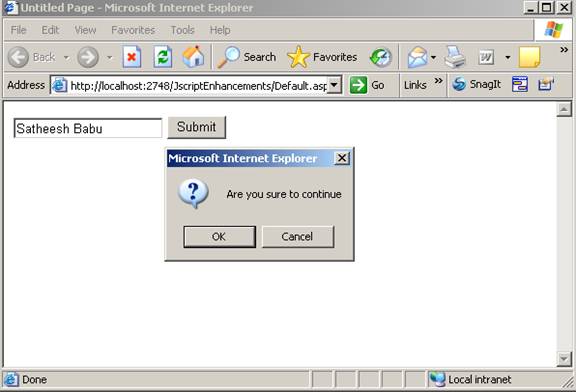
Executing the above code will bring a webform, Clicking Submit will bring a confirm box like the below figure,


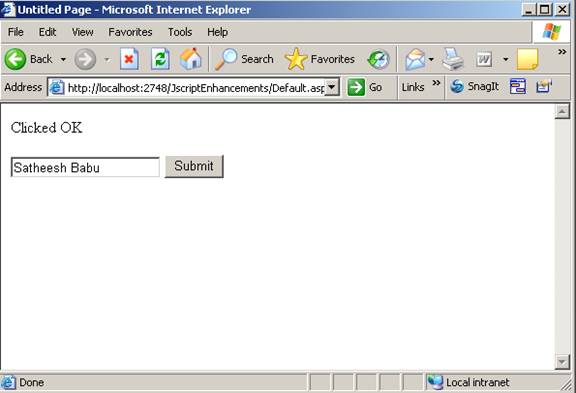
Clicking Cancel will not execute the submit click event, where clicking OK will execute the event and output will be like,